


Instead of manually rebuilding every Shopify order as a print job, set up a paid-order queue, an artwork map, and a press checklist for your 2026 Shopify to DTF transfer fulfillment workflow. Order ready-to-press transfers from DTF2GO, then press, inspect, and ship the apparel yourself; this guide covers that production handoff, not an automatic supplier integration.
- Shopify to DTF transfer fulfillment needs a paid-order queue, approved artwork, transfer purchasing, heat pressing, and shipping reconciliation.
- DTF2GO is best for apparel decorators buying ready-to-press DTF transfers and handling garment production themselves.
- Shopify Flow can tag paid orders; a tag does not submit a transfer order or confirm physical production.
- Keep artwork approval separate from payment, and mark apparel fulfilled only after the shipping handoff.
Why this matters
A paid apparel order is not a print-ready production ticket. Shopify records what the customer purchased. Your press operator also needs the approved design, decoration dimensions, garment, placement, and transfer quantity.
DTF2GO supplies custom cut-to-size, ready-to-press DTF heat transfers. That makes the brand a transfer-production resource for your shop, while your workflow still needs owners for blank garments, pressing, inspection, and customer shipping.
For your 2026 operating procedure, separate three events: customer payment, production approval, and shipment. Treating them as interchangeable sends unfinished work downstream and hides the actual status of the garment.
Before you start
- Shopify access: You need permission to review orders, product variants, payment status, tags, and fulfillment. For the automated tagging variant, you also need access to Shopify Flow and permission to create workflows.
- Production materials: Prepare approved artwork, a variant-to-artwork reference, suitable blank garments, a heat press, the transfer supplier's application instructions, and packing materials. Confirm artwork requirements before submitting files.
- The gotcha: An order can contain multiple garments, placements, and personalized designs. Payment does not approve spelling or artwork, and an order-level tag does not describe every line item. Keep unresolved items out of the press queue.
Assign a named person to transfer purchasing and another production owner if your shop separates those tasks. The handoff needs an owner, not just a shared spreadsheet that everybody assumes somebody else checks.
Paid-order queue
The first configuration unit is an order queue, not a supplier connection. Build the manual version first so the production rules are clear before you automate tagging.
- Open Orders in Shopify and select a paid, unfulfilled apparel order. Review the payment and fulfillment status on the order itself; do not release work from a customer email alone.
- Review each line item's variant, quantity, and customization details. Check whether the order includes non-apparel items that should stay outside the DTF queue.
- In the order's Tags section, add a shop-defined tag such as
dtf-review. Use a separate tag, such asdtf-ready, only after artwork and garment checks pass. - Create a production record with the Shopify order identifier, line-item identifier, variant SKU, garment description, quantity, artwork reference, placement, and approval status. Use one record per distinct decoration job.
- Filter your order list by the review tag when preparing production work. Reconcile every queued record against the live order before purchasing transfers.
Expected result: Each paid apparel order has a traceable production record, and unresolved artwork stays in review rather than reaching the press.
Queue rules that prevent duplicate work
Use the order identifier plus the line-item identifier as your production reference. Add a placement reference when one garment receives several decorations. An order number alone is too broad for a mixed basket.
Keep a transfer-purchase reference in the production record. Before another operator submits files, that field shows whether the job has already been purchased. Tags communicate status; the production record carries the detail.
Artwork map and transfer batch
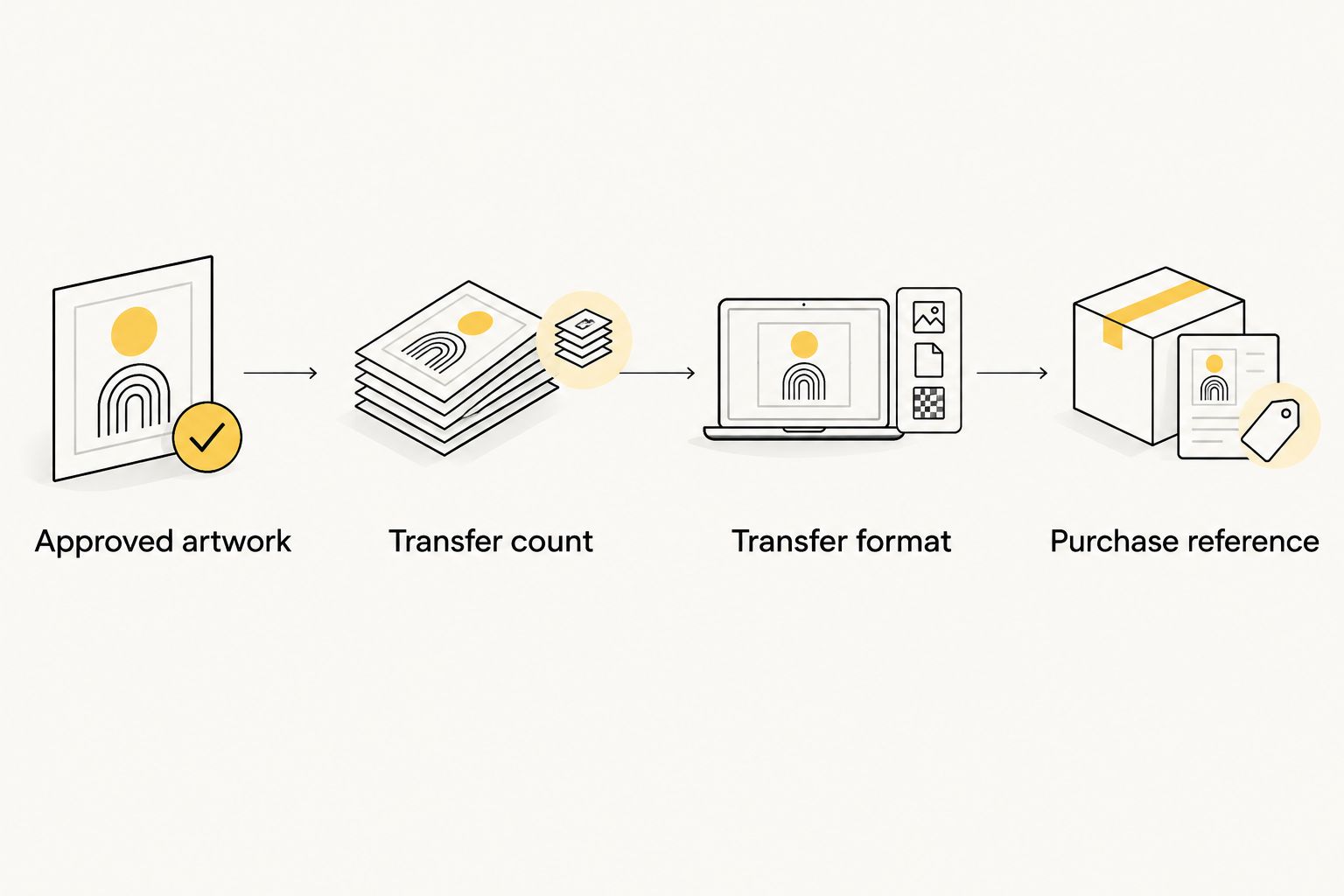
Your artwork map connects a sellable Shopify variant to the actual decoration file. Keep it independent of the product mockup: a storefront image is not a production file.
- Record the approved file reference for each garment variant and placement. Include the intended decoration width and height, with explicit units, and a revision identifier.
- For personalization, copy the customer's exact requested text into an approval record. Release the personalized file only after the required approval is complete.
- Calculate transfer demand by placement. In a worked example, 2 garments with 2 placements each require 4 transfers. This is production arithmetic, not a supplier specification.
- Choose a transfer format using the comparison below. Group only jobs whose artwork is approved, and preserve the connection between each design and its customer order.
- Submit the approved files through the selected ordering route. Record the purchase reference and the artwork revision used; do not mark the apparel fulfilled at this stage.
Expected result: Every purchased transfer corresponds to an approved decoration, and the transfer count matches the garments and placements in the batch.
Choose the transfer format
| Transfer format | Best for | Production advantage | Production limitation |
|---|---|---|---|
| Individual cut-to-size DTF transfers | Shops staging separate customer jobs at the press | Cut-to-size pieces remove gang-sheet cutting from your shop's handoff | You still need to identify, count, and match each piece to its garment |
| Print-ready DTF gang sheet | Shops combining approved designs into a shared layout | A shared sheet groups designs into one production layout | Your shop must plan the layout, separate designs, and maintain order traceability |
DTF2GO ready-to-press DTF transfers are best for decorators who want to buy transfers and keep garment pressing in-house. The trade-off is operational responsibility: purchasing transfers does not complete the blank-garment, pressing, inspection, or shipping work.
For your 2026 artwork map, preserve the file used for each submitted batch. Replacing a shared file without changing its revision makes a repeat order difficult to reproduce accurately.
Batch reconciliation
Separate garment quantity from transfer quantity. A front-and-back shirt uses different production accounting from a shirt with one chest decoration, even when both appear as a single purchased garment.
Before releasing a batch, total the transfers by design and placement, then compare that total with the submitted layout or individual-transfer order. Do not add undocumented replacement pieces: record any extra production pieces separately so the customer quantity remains clear.
Press station and quality release
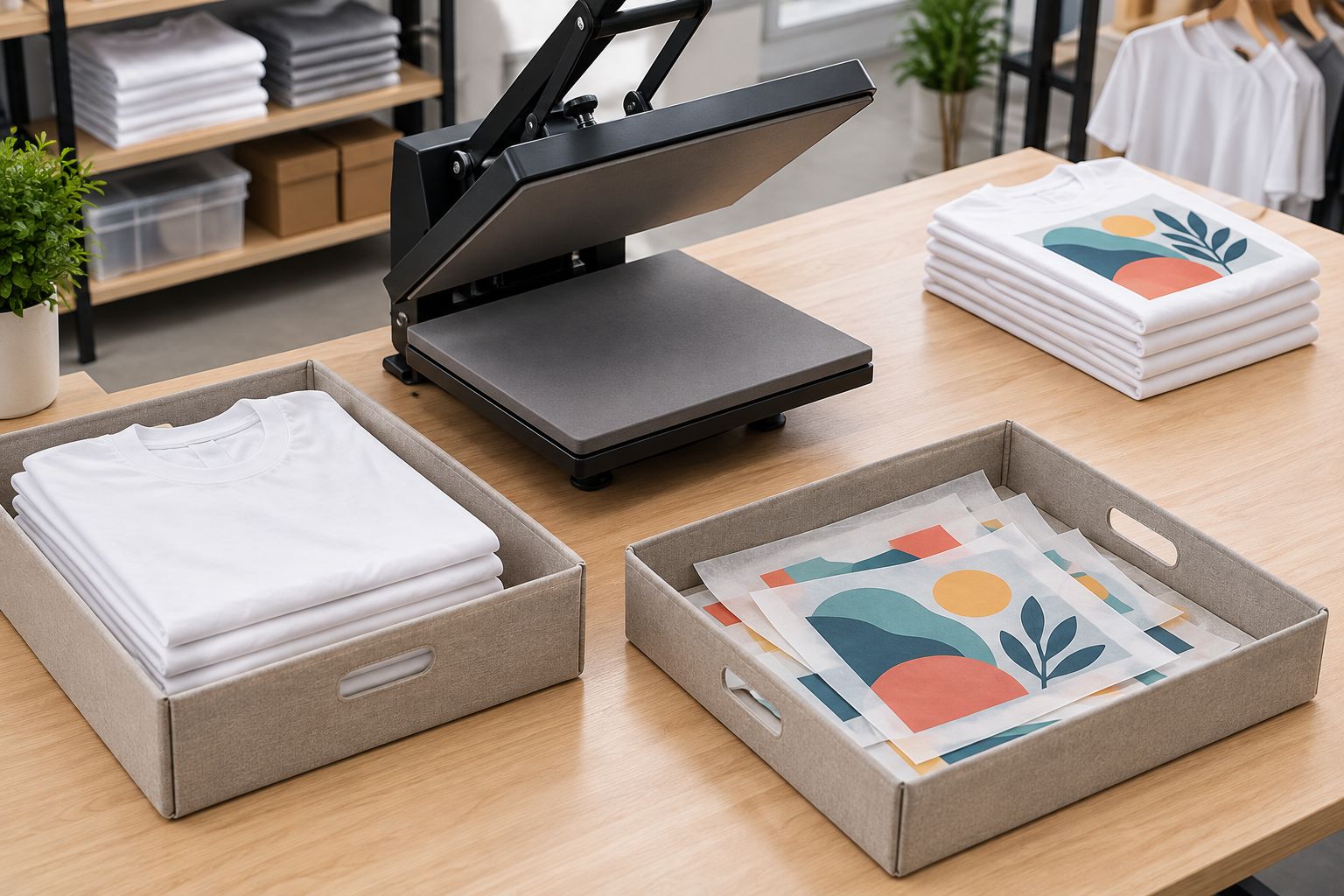
The press station needs the approved job record beside the actual garment. Use the instructions supplied for the specific transfer and check them against the garment's care and material requirements.
- Match the received transfers to the purchase reference. Inspect the artwork identity, dimensions, and quantities before distributing pieces to operators.
- Stage each job with its blank garment, transfers, and production record. Confirm garment size and color against the Shopify line item, not against memory or a similar nearby job.
- Configure the heat press according to the transfer's stated temperature, dwell time, pressure, and peel instructions. Keep those instructions at the station; do not substitute settings from a different transfer type.
- Decorate a representative garment before releasing the rest of a new garment-and-transfer combination. Check placement, adhesion, visible defects, and the effect of pressing on the fabric.
- Inspect finished apparel against the approved artwork and order details. Record completed quantities and isolate rejected pieces rather than counting them as finished customer goods.
Expected result: The press queue produces inspected garments with a documented connection to the approved order and transfer batch.
Stage unpressed and inspected work in separate areas. A garment sitting beside the press is not evidence that it passed inspection; the production record must show the release decision.
Validate the handoff before live production
For your 2026 setup, test 3 orders: a single-placement garment, a multi-placement garment, and a personalized garment. These are recommended test cases, not measured shop results.
Run each through artwork review, transfer counting, purchasing, pressing, and packing. Check that a second operator can finish the job using only the production record. If the operator needs verbal instructions, add the missing information before using the workflow for customer work.
Shipping reconciliation
Customer fulfillment belongs to finished apparel, not to the arrival of transfers at your shop. Keep supplier receipt and customer shipment as separate milestones.
- Compare inspected garment quantities with the current Shopify order. Check for edits, cancellations, or partial work before packing.
- Pack the correct garments for each customer and verify the recipient details. Keep incomplete line items out of completed shipments.
- Open the order in Orders and use Fulfill items for the items being shipped. Confirm the item quantities rather than automatically treating the whole order as complete.
- Enter the shipment's Tracking number and Shipping carrier when tracking applies. Complete the fulfillment action in line with your actual shipping handoff.
- Record the shipment reference in the production record and close the completed job. Keep any unfinished balance visible for follow-up.
Expected result: Shopify's fulfillment record matches the customer shipment, and the shop can trace the finished apparel back to its artwork and transfer purchase.
A split order needs a split record. If some garments remain in production, keep their unfinished quantities explicit even when another part of the order has shipped.
Automatically tag orders when payment completes
Once the manual queue works, Shopify Flow can remove the repetitive tagging step. Automate queue entry, not artwork approval or physical completion.
- Open Shopify Flow and select Create workflow.
- Choose Select a trigger, then select Order paid.
- Add the Add order tags action and enter
dtf-reviewin Tags. - Save the workflow and use Turn on workflow to activate it. Test with a paid order before relying on the tag for production.
- Confirm the order receives the tag and still requires the artwork, garment, and purchase checks described above.
Expected result: Newly paid orders enter the review queue without manual tagging. This configuration does not send files or purchase transfers from DTF2GO.
Use the unconditional version only when the queue is appropriate for your store's orders. In a mixed-product store, add conditions based on your actual apparel catalog or retain manual selection; unrelated orders should not become press jobs.
Recheck the job whenever an order changes
Order edits are a separate workflow from initial payment. Before purchasing transfers and again before pressing, compare the production record with the live Shopify order.
If the customer changes quantity, garment variant, or personalization, return the affected job to review. Update the artwork revision and required transfer count, then document whether transfers have already been purchased or garments pressed. An edit does not undo physical work.
Troubleshooting
- An order is paid but absent from the tagged queue. Check that Shopify Flow is active, review the workflow run, and confirm payment occurred after activation. Reconcile older paid orders manually instead of assuming a new workflow tagged them retroactively.
- The same decoration job appears twice. Compare order, line-item, and placement references. Retain one active record and check the purchase reference before submitting another transfer order.
- Transfer quantity does not match garment quantity. Recalculate by placement. Count front, back, and other decorations separately, and check for order edits before accepting the batch total.
- Personalized artwork does not match the order. Stop the affected job and compare the approved file revision with the customer's recorded text. Correct the approval and production records before releasing replacement work.
- Transfer edges lift during inspection. Check the specified press settings, peel method, and whether seams or uneven garment thickness prevented consistent contact. Isolate affected garments and verify the corrected setup before continuing the batch.
Customize your workflow
Build your 2026 queue around the way your shop produces apparel. Batch repeat designs by approved artwork reference, but keep each customer's quantities and garment variants traceable through pressing and packing.
For shops combining several approved designs, use the guide to combining multiple designs on one DTF gang sheet. Layout planning belongs after approval, not before it.
Expand the production record with operator assignment, inspection outcome, and shipment reference. Add software connections only when you have verified the receiving system's supported interface and tested error handling; an order tag alone is not a transfer-order integration.
FAQ
How do I set up Shopify to DTF transfer fulfillment?
Create a paid-order review queue, map each apparel line item to approved artwork, purchase the required transfers, and press and inspect the garments before shipping. Keep transfer purchasing separate from customer fulfillment so Shopify reflects finished apparel shipments.
Does this workflow automatically send Shopify orders to DTF2GO?
No. This workflow uses DTF2GO for ready-to-press transfer purchasing and keeps order review, garment production, and shipping under your shop's control. Automated supplier submission requires a separately verified connection.
Can Shopify Flow start a DTF production queue?
Yes, Shopify Flow can use Order paid to add an order tag for production review. The tag starts a queue; it does not approve artwork, purchase transfers, or confirm pressing.
Are cut-to-size transfers better than gang sheets for Shopify orders?
Cut-to-size transfers fit shops that want separate pieces for staging, while gang sheets fit shops combining approved designs into a shared layout. Cut-to-size jobs still need identification, and gang sheets require layout planning and separation.
When should I mark a DTF apparel order fulfilled in Shopify?
Record fulfillment for the finished apparel shipment, not when transfers arrive at your shop. Verify garment quantities and record the tracking details for the items actually shipped.
What should I do when a customer changes a personalized order?
Return the affected decoration job to review and compare the new request with the approved artwork and production status. Update the revision and quantities before further work, and document any transfers already purchased or garments already pressed.
What heat-press settings should I use for these transfers?
Use the application instructions supplied for the specific transfer and verify suitability for the garment. Do not carry temperature, dwell time, pressure, or peel settings over from a different transfer type without checking them.
One last thing
Use the decorated garment as the final checkpoint, not the transfer delivery. In your 2026 workflow, a correct transfer can still land on the wrong garment or in the wrong customer package. Close the job only when artwork, garment, inspection, and shipment records agree.


