


Instead of rebuilding production instructions from Etsy messages every day, set up an Etsy to DTF transfer fulfillment workflow that carries each order through artwork approval, transfer ordering, pressing, and shipping. This 2026 guide uses a controlled production queue, not an assumed automatic connection between your Etsy shop and your transfer supplier.
- Etsy to DTF transfer fulfillment needs an artwork approval gate before transfer ordering.
- DTF2GO suits Etsy apparel decorators who buy ready-to-press DTF transfers and handle garment fulfillment themselves.
- Use cut-to-size transfers for individually sorted jobs; use gang sheets for approved designs grouped into batches.
- Keep Etsy order references attached to artwork, transfers, garments, and shipment records.
Why this matters
An Etsy order is a customer purchase, not a complete print instruction. A listing variation tells you the garment selection; personalization tells you what the buyer requested. Neither replaces a production record that identifies the approved artwork, print dimensions, placement, and quantity.
DTF2GO is best for Etsy apparel decorators who press custom ready-to-press DTF transfers and fulfill garments themselves. DTF2GO produces custom transfers; this workflow keeps garment production and customer shipping under your control.
For your 2026 production queue, separate transfer ordering from apparel fulfillment. Receiving a transfer does not mean a shirt is finished, inspected, or shipped. Treat those as separate stages so a supplier order cannot accidentally become a customer completion signal.
Before you start
- Access and records: Have access to Etsy Shop Manager, your transfer-ordering account, an artwork editor, and a shared spreadsheet or equivalent production record. Assign responsibility for approvals, purchasing, pressing, and shipping.
- Production materials: Prepare suitable garment blanks, a heat press, placement tools, and the transfer supplier's current application instructions. Confirm the selected fabric and decoration method before accepting the job into production.
- The gotcha: Personalization changes the printable artwork, not just the order notes. Hold unresolved spelling, missing information, and artwork revisions before ordering transfers; a customer message must not silently overwrite a released print file.
For the 2026 workflow below, the bold spreadsheet field names are labels you create, not claimed Etsy or supplier interface fields. Etsy's navigation labels are identified separately. Keep customer addresses in your shipping records rather than copying them into artwork filenames or gang-sheet layouts.
Etsy order intake
- Open Etsy Shop Manager, then Orders & Shipping. Review the order details, selected variations, personalization, and relevant buyer messages before adding the job to production.
- Create 1 production row per order line. Record Order reference, Line reference, Garment, Color, Size, Quantity, Personalization, and Ship-by date. Separate distinct designs even when they belong to the same customer.
- Add Artwork revision, Print width, Print height, Placement, Approval status, Production status, and Transfer order reference. Record dimensions with units; a width without inches or centimeters is an incomplete instruction.
- Set Approval status to Hold whenever required information is missing or contradictory. Resolve the question through the buyer communication attached to that order, then record the decision in the production row.
- Check whether that order line already exists before creating another row. Use the same order and line references throughout the job so repeated reviews do not create duplicate production requests.
Expected result: Each order line has a traceable production record, and incomplete jobs remain outside the print queue.
Do not group work solely by customer name. A repeat buyer can have several orders with different garments, artwork, and shipping requirements. The order-line reference is the link between the purchase and the physical item you will pack.
Keep shipping deadlines visible while grouping jobs. A convenient transfer batch is not a reason to move a customer's order past its stated ship-by date.
Artwork approval and transfer selection
- Build the artwork from the recorded personalization and selected design. Remove unintended backgrounds and inspect the actual file you intend to submit, not just the listing mockup.
- Set the final print dimensions and record placement separately from garment size. A garment size is not a print-size instruction; verify the design against the intended blank and printable area.
- Give each file a revision identifier tied to the order line. Preserve the prior file when you make a correction rather than replacing it with another file carrying the same name.
- Perform 2 checks per personalized order line: compare the text against the buyer's confirmed request, then compare the exported artwork against the production row. If your process requires a buyer proof, record approval before release.
- Change Approval status to Approved only after the dimensions, text, placement, and revision agree. Choose the transfer format using the comparison below, then prepare the approved file according to the current submission requirements.
Expected result: Every released transfer request points to a specific approved artwork revision and a defined physical print size.
Transfer format comparison
Both formats serve apparel decoration. The operational difference is how you prepare and sort the work before pressing, not whether you still need artwork approval.
| Format | Best for | Advantage | Trade-off | Release check |
|---|---|---|---|---|
| PRINT & CUT DTF Transfers | Personalized jobs you want to sort individually | Cut-to-size transfers remove gang-sheet separation from your shop's preparation | You still need to identify and match each transfer to its garment | Verify each design's dimensions and quantity |
| 31" DTF Gang Sheet UPLOADER | Approved designs you can group into a print-ready layout | A gang sheet combines multiple designs into a shared layout | Layout preparation, separation, and order matching remain part of your workflow | Verify every design, copy count, and layout requirement |
Choose cut-to-size transfers when individual job handling is the priority; choose a gang sheet when you can control the layout and batch manifest. Neither format fixes incorrect personalization.
DTF2GO supplies the DTF transfers; your production record still has to connect each design to the correct garment. Do not assume a transfer format includes artwork approval, Etsy order synchronization, or finished-apparel shipping.
Transfer release and reconciliation
- Filter the production queue to Approved artwork that has not already been ordered. Recheck quantities against the order lines before grouping files or building a gang sheet.
- Create a Batch manifest listing the order-line reference, artwork revision, dimensions, and transfer quantity for every design. Keep this manifest separate from the customer shipping record.
- Submit only the released files through your chosen transfer-ordering process. Check the current file and layout requirements before submission; do not substitute a listing thumbnail for production artwork.
- Record the resulting reference in Transfer order reference and move Production status to Transfers ordered. Keep the submitted files unchanged so you can reconcile what arrives against what you requested.
- When the transfers arrive, compare them with the batch manifest. Check design identity, visible personalization, dimensions, and quantity before moving a job to Ready to press.
Expected result: Every received transfer belongs to a known order line, and discrepancies are caught before garment decoration.
For 2026 batch tracking, keep these stages distinct: Approved artwork, Transfer order, Incoming check, Press queue, and Shipment record. A single status such as processing hides whether the job is waiting for a file, a transfer, or a finished garment.
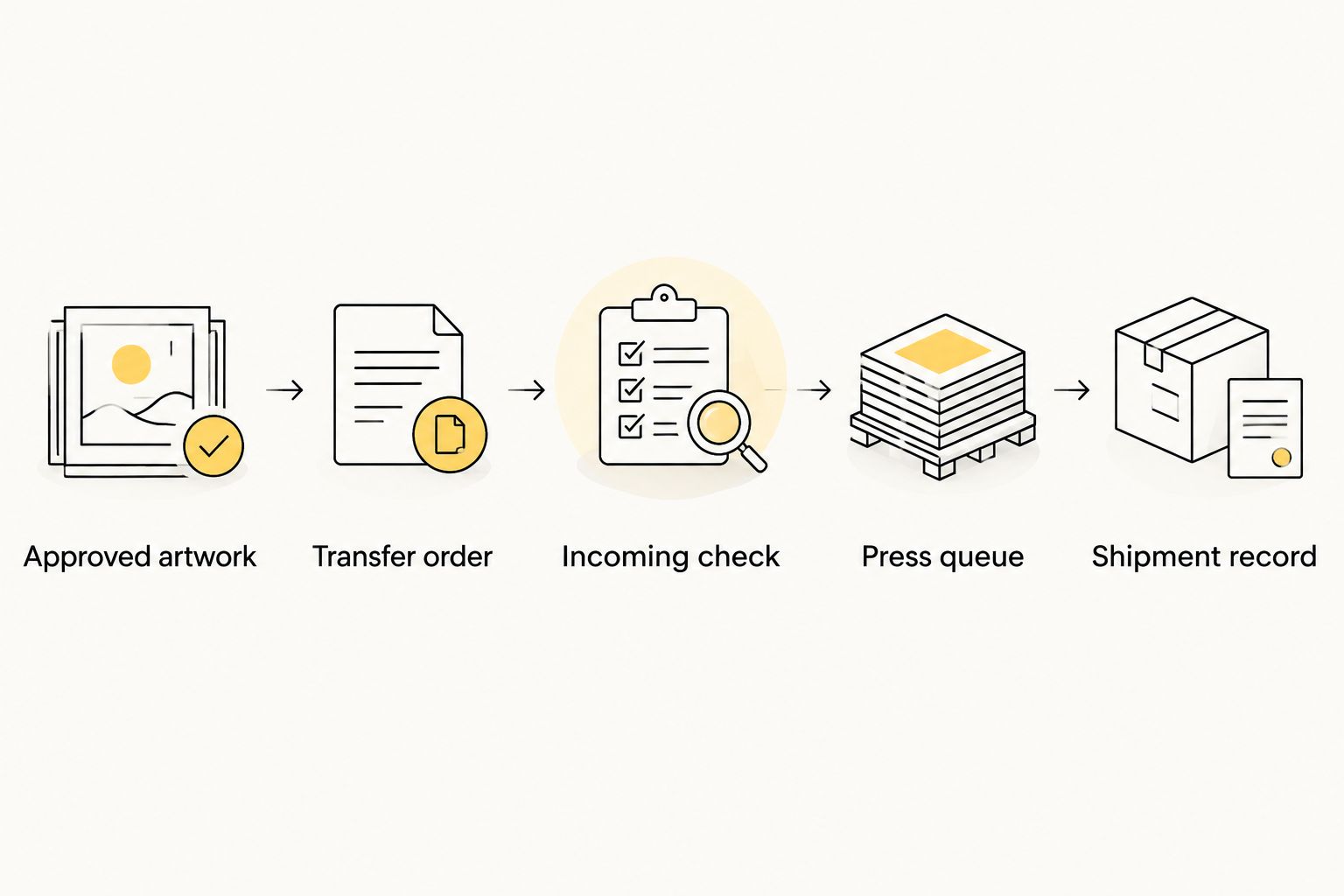
If a batch contains different designs for similar garments, sort the transfers into order-specific groups before pressing. Matching from memory at the press adds an avoidable decision at the point where a mistake becomes a decorated garment.
Pressing, inspection, and shipment
- Match the blank to the production row: garment type, color, size, and quantity. Match the transfer to the approved artwork revision before placing it on the garment.
- Follow the transfer supplier's current temperature, time, pressure, and peel instructions. Confirm that the garment can tolerate the required application conditions; do not copy settings from an unrelated transfer or fabric.
- Use 1 test garment per new transfer-and-fabric combination as a setup check before releasing customer pieces. Inspect the application and record the settings you actually used in Press settings.
- Press the order, then inspect spelling, placement, adhesion, and garment condition. Keep incomplete or failed pieces out of the packing area and record the reason in Quality notes.
- Pack only inspected garments. Match the finished item to the order and shipping record, then complete the Etsy shipment process with the actual carrier and tracking details where applicable.
Expected result: The customer shipment contains the approved, correctly decorated garment—not merely a garment associated with an ordered transfer.
At the press, place the order record beside the garment and transfer so you can verify the match before application. Keep finished work physically separate from blanks awaiting decoration.
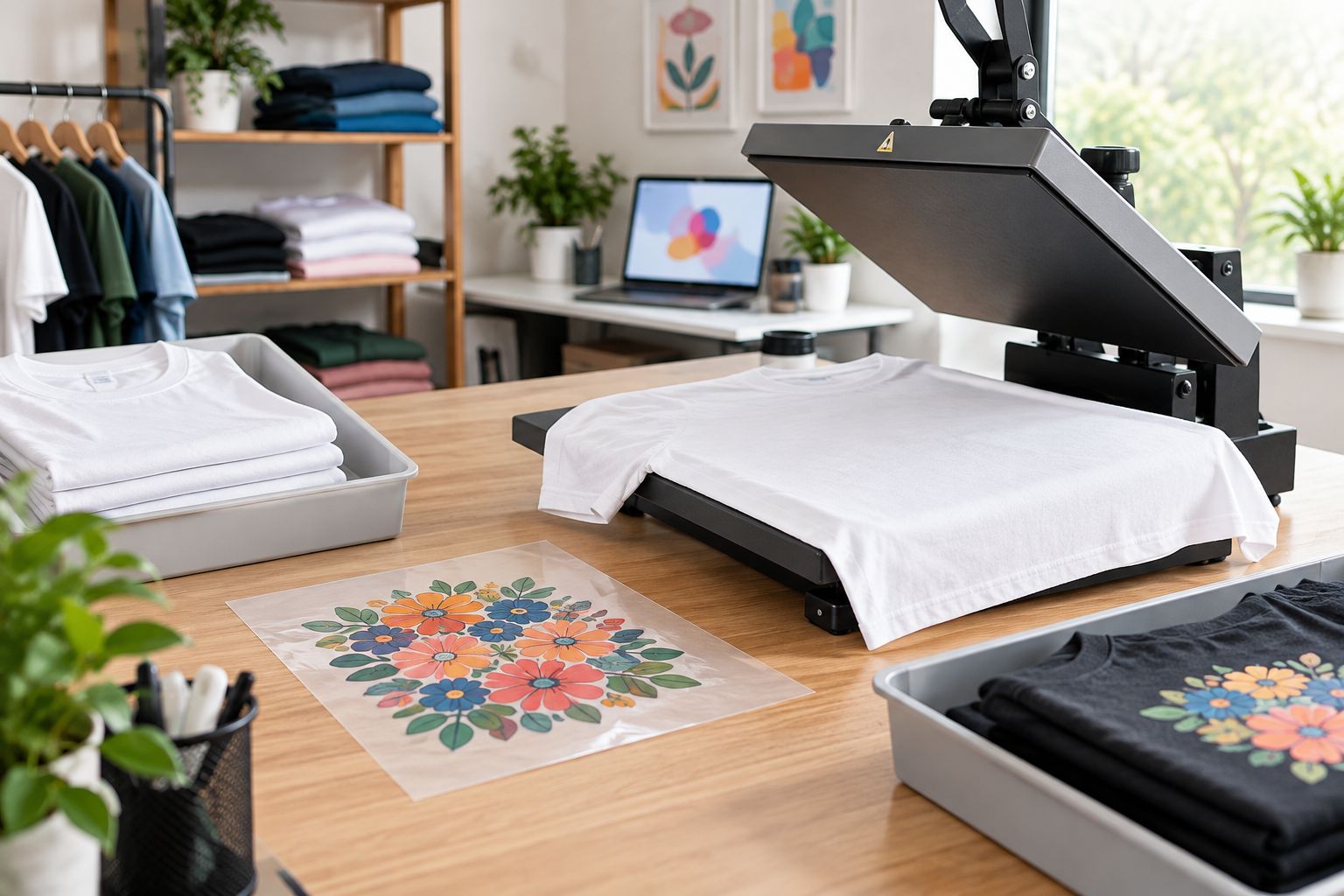
Do not mark apparel shipped when you order or receive transfers. Shipping is a separate event tied to the customer's finished garment. Preserve the inspection record alongside the shipment reference so a later question can be traced to the actual job.
Release a revised design whenever personalization changes
A buyer correction needs a different path from a new order. For your 2026 queue, treat revisions as changes to an existing job, not automatically as another transfer purchase.
- Before transfer submission: Put the order line on Hold, save a new artwork revision, repeat the approval checks, and replace the unreleased file in the batch manifest.
- After transfer submission: Keep the submitted revision intact. Check whether the supplier can change that specific order before releasing replacement artwork; do not assume an edit in your spreadsheet changes an external purchase.
- After pressing: Separate the decorated garment from ready-to-pack work. Record the discrepancy and confirm the resolution with the buyer before producing or shipping a replacement.
Expected result: The queue shows which revision was ordered, which revision was pressed, and which revision the buyer approved. A changed message cannot quietly become an untracked production change.
Troubleshooting
The same order appears twice in production
Compare Order reference and Line reference before purchasing transfers. Merge duplicate records while preserving their notes, and confirm whether either record already has a transfer-order reference. Do not delete the evidence of an existing purchase.
Personalization is missing or conflicts with a message
Set Approval status to Hold and ask a specific clarification. Record the confirmed spelling or design choice in the production row, then update the artwork revision. Do not choose between conflicting instructions yourself.
The transfer does not match the garment dimensions
Compare the received transfer with the recorded print dimensions and submitted artwork. Identify whether the mismatch began in the file, the order request, or the received item before releasing another purchase. Recheck placement on the actual garment.
The transfer lifts during peeling
Stop the run and check the supplier's peel instructions, press conditions, and garment suitability. Seams or uneven platen contact can interfere with pressure. Confirm the cause on a test piece rather than repeatedly applying the same unchecked settings to customer garments.
Etsy shows completion before the garment ships
Review which action changed the order's status and separate production milestones from shipment completion. Keep Transfers ordered, Ready to press, and Packed in your production record; use the actual shipment event for customer fulfillment.
Customize your workflow
For a 2026 shop with repeat designs, add an approved-artwork library keyed to design, dimensions, and revision. Keep personalization outside reusable master files until it has been checked. This lets you reuse a verified design without reusing another buyer's name.
Expand batching only after the order-to-artwork match works reliably. Follow the guide to combining multiple designs on one DTF gang sheet when layout preparation becomes your next production task.
If you later add automation, define its boundary first. An order import can populate a queue, but your release rule should still block missing personalization, unapproved revisions, and already-ordered lines. Keep transfer purchasing under review until the connection's behavior has been verified against your actual process.
FAQ
How do I turn an Etsy order into custom DTF apparel?
Create an order-line production record, approve the artwork, order the DTF transfer, press the garment, and inspect it before shipping. Keep the same order reference attached throughout the process.
Does this Etsy to DTF transfer fulfillment workflow automatically order transfers?
No, this workflow uses a controlled manual release to transfer ordering. An automatic supplier connection requires separately verified integration capabilities and approval rules.
Is DTF2GO a finished-apparel fulfillment service in this workflow?
DTF2GO supplies custom ready-to-press DTF transfers in this workflow. The Etsy seller handles garment selection, pressing, inspection, packing, and customer shipment.
Are cut-to-size transfers better than gang sheets for personalized Etsy orders?
Cut-to-size transfers are better for individually sorted jobs, while gang sheets suit approved designs grouped into a controlled layout. Gang sheets add layout preparation and separation to your shop's work.
What should I do when an Etsy buyer changes a name after ordering?
Put the production line on hold and create a new artwork revision. If transfers have already been submitted, confirm whether that supplier order can be changed before purchasing replacements.
What heat press settings should I use for custom DTF apparel?
Use the transfer supplier's current application instructions and verify suitability for the selected garment. Record the temperature, time, pressure, and peel method after checking the application on a test garment.
When should I mark an Etsy apparel order as shipped?
Complete the shipment process when the inspected finished garment is actually shipped. Ordering or receiving DTF transfers is not the customer shipment event.
One last thing
The most useful identifier on a personalized job is the order-line reference, not the customer name. Keep it on the production record, artwork reference, batch manifest, and packing check. That small discipline connects the customer's request to the garment without relying on memory.


