


Instead of manually rebuilding transfer orders from every repeat apparel sale, set up a print shop POS to DTF reorder workflow that turns approved job details into a checked reorder draft. Keep supplier submission behind an approval gate: this 2026 guide covers the job mapping, duplicate protection, and order tracking that make that handoff dependable.
- A print shop pos to dtf reorder workflow should automate reorder preparation before supplier submission.
- DTF2GO fits print shops sourcing custom, ready-to-press DTF transfers for repeat apparel jobs.
- Map each apparel SKU to approved artwork, print dimensions, placement, and transfer quantity.
- Use duplicate protection and approval gates before releasing a DTF gang sheet or cut-to-size transfer order.
Why this matters
A POS sale describes what the customer bought. A transfer order describes what your press operator needs. Those are different records: a decorated hoodie line item does not, by itself, identify the approved artwork revision, print dimensions, or decoration placements.
DTF2GO is best for print shops sourcing custom, ready-to-press DTF transfers. Use DTF2GO as the transfer supplier in this workflow; keep your POS, job records, and approval controls on the shop side. The process below does not depend on a claimed native connection between the supplier and your POS.
For your 2026 setup, separate automatic preparation from automatic purchasing. A draft can collect the right information without committing an incorrect job to production. Automate the repeatable data handoff; retain approval wherever artwork, quantities, or submission details require a decision.
Before you start
- Accounts and access: Have permission to read POS order lines and update your job records. Confirm an actual event, export, or documented connection method before choosing your automation route. Also assign the person responsible for submitting supplier orders.
- Production materials: Collect approved artwork files, final print dimensions, garment-to-transfer mappings, and the order history you use for repeat jobs. Keep files in a location your production team can access without relying on one employee's personal account.
- The hidden gotcha: An apparel SKU is not necessarily a transfer SKU. A shirt with front and back decoration needs separate placement records. Also confirm the supplier submission method before building that final step; a product page is not an order-submission API.
Name an owner for exceptions before enabling the workflow. Missing artwork, changed dimensions, and canceled jobs need a destination other than an unattended notification inbox.
Job record configuration
Create a reorder worksheet or database before connecting the POS event. The bold labels below are shop-defined fields to create, not claimed menu labels in a particular POS or supplier interface. Keep your software's actual control names when configuring its connection.
Map the production fields
- Create POS Order ID and POS Line ID fields. Preserve the source identifiers so you can trace a transfer request back to the exact apparel line.
- Add Garment SKU, Decoration Placement, and Transfers per Garment. Keep each placement explicit rather than storing a combined description such as front-and-back logo.
- Add Artwork File, Artwork Revision, Print Width, Print Height, and Dimension Unit. Record final output dimensions separately from the file's name.
- Add Artwork Approved, Job Released, Requested Quantity, and Reorder Status. Treat approval and production release as separate decisions.
- Add Supplier Order Reference and Submission Status. These fields distinguish an internal request from an order actually submitted to the supplier.
Expected result: Every reorder record identifies the customer job, approved artwork, placement, dimensions, quantity, and submission state. A production operator can understand the request without reopening the sales conversation.
Keep dimension units mandatory. A width without its unit is incomplete production data, even when the team usually works in inches. Store the approved file revision with the request rather than linking only to a folder that contains several similar designs.
Choose the transfer format
Select the format based on how your team prepares and handles transfers. Neither format fixes missing job data.
| Transfer format | Best for | Workflow advantage | Workflow limitation |
|---|---|---|---|
| Individual Cut-to-Size DTF Transfers | Repeat jobs routed by individual design and placement | Supports a request organized around separate transfer designs | Each design still needs its own approved dimensions and quantity |
| Print-Ready DTF Gang Sheet | Jobs consolidated into an approved sheet layout | Groups multiple designs into one production file | Layout changes require a fresh check of design counts and dimensions |
DTF2GO supplies custom cut-to-size, ready-to-press DTF transfers. Its role in this workflow is transfer production; your shop remains responsible for connecting sold garments to the correct artwork and purchase request.
Choose cut-to-size requests for design-level routing; choose gang sheets when your shop controls the consolidated layout. Do not assume a workflow that copies file links also creates or validates a gang sheet.
POS trigger configuration
Choose the source event that represents a job ready for production. Payment, artwork approval, and production release are separate states; do not collapse them into a single assumption.
Define the release event
- Identify the POS event or export your system actually supports. Use a documented event connection when available; otherwise, build the draft queue from an order export.
- Read the source order and line identifiers. Include garment SKU, ordered quantity, cancellation state, and any production-release information your records contain.
- Require Artwork Approved and Job Released before generating a reorder draft. Route incomplete records to the exception owner.
- Exclude canceled lines and lines that do not require a new transfer request. A garment sale already assigned to an existing production job must not create another order.
- Record the source event identifier when one exists. Preserve the order and line identifiers even when an export supplies no event identifier.
Expected result: Only released, artwork-approved jobs enter the reorder queue. An unpaid quote, incomplete design request, or unrelated apparel line does not pass the gate merely because it exists in the POS.
For a 2026 deployment, start with draft creation rather than supplier submission. This gives your production lead a visible checkpoint while you verify that the event matches the shop's actual release process.
Add duplicate protection
- Create Reorder Key from the source order, line, placement, and artwork revision. Make it stable for repeated delivery of the same production request.
- Check whether that key already exists before creating a draft. If it does, route the event to the existing record instead of adding another request.
- Use a uniqueness constraint or equivalent duplicate control in your data store. A lookup alone does not prevent simultaneous events from creating competing records.
- Store Submission Status independently of the trigger. Retrying a failed notification must not repeat an already completed supplier submission.
Expected result: Repeated delivery of an event points to the same request. A retry cannot silently become another transfer order.
Treat a new artwork revision as a change requiring review, not as permission to purchase additional transfers. Duplicate protection stops repetition; change control decides whether a changed job belongs in production.
Reorder draft and approval configuration
Build the draft from production requirements, not from the garment description alone. Keep the calculation and its source visible so an operator can verify the result.
Calculate the transfer request
- Read the released garment quantity for each eligible line. Do not use the quantity from an earlier quote after the customer changes the job.
- Multiply garment quantity by Transfers per Garment for each placement. Calculate front, back, sleeve, and other placements separately.
- Group requests only when artwork revision, print dimensions, and transfer format match. Identical filenames do not prove identical production requirements.
- Attach the approved file reference and write the calculated result into Requested Quantity. Store any separately approved production allowance as its own field rather than hiding it in the formula.
- Set Reorder Status to your shop-defined draft state. Send the record to the designated approver with its source job reference.
Expected result: The draft shows which artwork to produce, at what dimensions, and in what quantity. Each total traces back to a released apparel line and placement.
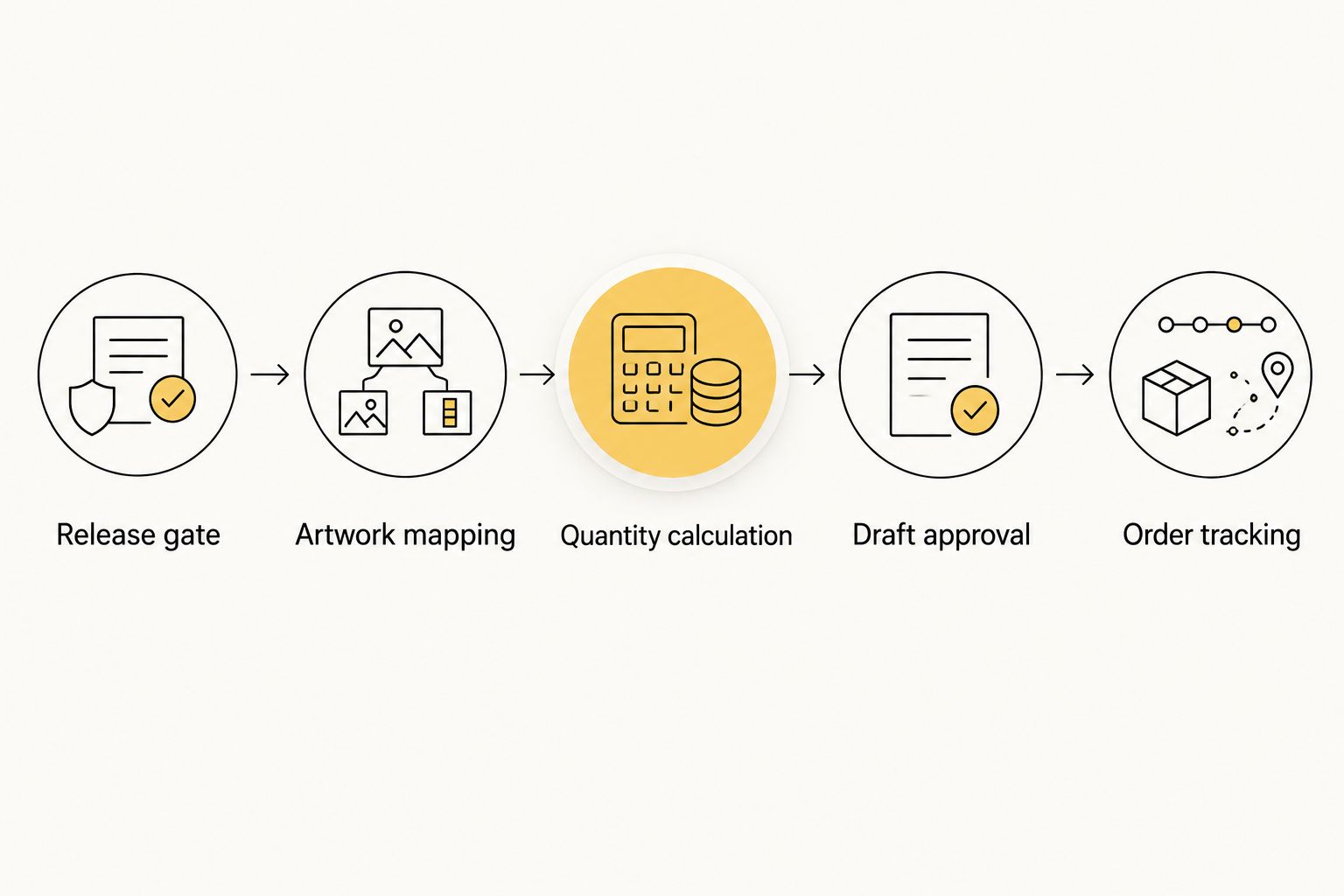
The sequence is straightforward: Release gate, Artwork mapping, Quantity calculation, Draft approval, then Order tracking. Keep that order intact; approval cannot check a quantity that has not yet been calculated.
Approve and record submission
- Have the approver verify artwork revision, dimensions, placements, and quantities against the released job. For a gang sheet, also verify the exported layout and design counts.
- Record the approver and decision on the draft. Keep rejected requests separate from approved requests so an operator cannot mistake an exception for released work.
- Submit the approved request through the supplier's supported ordering method. Enable unattended submission only after confirming a documented method and testing its failure handling.
- Write the returned order reference into Supplier Order Reference. If a person submits the order, require that person to enter the confirmation reference.
- Mark the record submitted only after confirmation. Creating a draft, sending a message, or attempting an upload is not confirmation of a supplier order.
Expected result: An approved request has a traceable supplier reference. An unsuccessful or uncertain submission remains visible for investigation instead of being labeled complete.
For 2026, judge the workflow by whether its records distinguish draft, approved, and submitted work—not by whether it sends fewer notifications. A quiet queue with ambiguous submission states is not a reliable production system.
Test before enabling live requests
Run 3 test cases: an approved repeat job, an order missing approved artwork, and a repeated event for the same released line. Require 1 draft from the valid job, no draft from the incomplete job, and no additional draft from the repeated event.
Keep those tests out of live supplier submission. Then inspect the records themselves: the correct screen message is not enough if the stored artwork revision or quantity is wrong.
Variant: update drafts when a released job changes
Order changes need a different rule from new-order creation. Update an unsubmitted draft; review a submitted request before creating replacement work. This variant handles quantity changes, revised artwork, and cancellations without treating every edit as another purchase.
- Read the current source line when your supported update event or next export identifies a change.
- Find the existing request using its order, line, and placement references. Compare the current job requirements with the recorded draft.
- If the request is unsubmitted, update its quantity or artwork revision and clear its previous approval. Require approval again before release.
- If the request is submitted, route the change to the production lead. Preserve the original supplier reference and record the requested change separately.
- If the job is canceled, block further draft submission. Handle any already-submitted request through the supplier's actual process rather than assuming automatic cancellation.
Expected result: Changed jobs remain traceable, and an old approval cannot authorize a new artwork revision. Your 2026 change log shows what changed, who reviewed it, and whether supplier action followed.
Troubleshooting
The same sale creates multiple drafts
Check whether repeated source events generate different reorder keys. Use stable order, line, placement, and revision values; add a uniqueness control so simultaneous events cannot create duplicates. Keep notification retries separate from request creation.
The requested quantity is wrong
Check garment quantity, transfer units, and placement mapping. Calculate placements separately and verify that a later order update did not overwrite an already-submitted request. Remove hidden allowances from the formula and require explicit approval for them.
The approver cannot open the artwork
Check file permissions using the approver's actual access. Replace personal-session links with an approved shared file reference, then confirm that the reference opens the intended revision. Hold the request until access and revision are correct.
A canceled job still reaches approval
Check the current source record before creating or releasing the draft. An earlier event can describe an order that has since changed. Recheck cancellation and production-release status at approval, not only at initial ingestion.
Submission outcome is uncertain
Do not blindly retry. Check the ordering account, confirmation message, and supplier reference first. Record the outcome before taking another submission action; an interrupted handoff does not prove that the order failed.
Customize your workflow
Extend the process by routing exceptions to specific owners: artwork problems to prepress, quantity discrepancies to production, and uncertain submissions to the purchasing owner. Keep the same record visible across those handoffs rather than creating disconnected message threads.
For DTF2GO reorders, retain the approved artwork reference, transfer format, and submission confirmation together. The benefit is a traceable repeat-order request; the limitation is that your shop still needs its own POS connection and approval rules.
Add production receipt and job assignment after the reorder process passes its tests. Keep procurement approval separate from press setup: confirming that transfers were ordered does not confirm that the garment application is ready.
FAQ
Can my print shop POS automatically reorder DTF transfers?
Your POS can support automatic reorder preparation when it provides usable order events or exports. Automatic supplier submission requires a confirmed ordering connection; a storefront URL alone does not provide one.
Does DTF2GO have a native connection to my POS?
This workflow does not assume a native DTF2GO POS connection. Confirm the supported ordering method before enabling any automatic supplier-submission step.
What information should a DTF reorder include?
A DTF reorder should identify approved artwork, revision, final print dimensions, placement, quantity, and transfer format. Keep the source job reference and supplier confirmation with the same request.
Should payment trigger a transfer reorder?
Payment alone should not trigger supplier submission. Require artwork approval and production release so a paid but incomplete job does not become a transfer order.
Are cut-to-size transfers better than gang sheets for repeat jobs?
Cut-to-size transfers fit design-level routing, while gang sheets fit approved consolidated layouts. Both require verified artwork dimensions and quantities; a gang sheet also requires layout checking.
How do I stop duplicate DTF reorder requests?
Use a stable reorder key and enforce uniqueness before creating a request. Track submission separately so repeated events or notification retries cannot create another supplier order.
What happens when a customer changes an order after approval?
An unsubmitted draft should be updated and approved again. A submitted request needs review against its supplier reference before replacement work or another submission is authorized.
One last thing
Automate the request, not the assumption that a previous job is still correct. A repeat customer can change the logo, placement, or garment count while ordering under the same familiar job name. Before enabling unattended steps in 2026, make the artwork revision and final dimensions part of the approval record—not information someone has to remember.


