


Instead of copying WooCommerce orders into disconnected artwork files and press notes, use a controlled order-to-production workflow that ties each garment to approved artwork, a transfer order, and a final inspection. This 2026 guide connects WooCommerce order handling with DTF transfer preparation and pressing, with an optional webhook for production notifications—not an assumed supplier integration.
- WooCommerce orders DTF apparel workflow: release paid orders, approve artwork, order transfers, then press and inspect.
- DTF2GO ready-to-press transfers suit decorators who source transfers separately and press apparel in-house.
- Use WooCommerce order updates to flag changes, not to authorize duplicate transfer orders.
- Keep artwork approval and garment testing as explicit production gates.
Why this matters
DTF2GO is best for apparel decorators who need custom ready-to-press DTF transfers for in-house pressing. The division of work is clear: WooCommerce records the sale, your production ticket specifies the decoration, and DTF2GO supplies the transfers you order.
The handoff still needs control. A paid order does not prove that the artwork is approved, the print dimensions are correct, or the selected blank tolerates the application conditions.
For your 2026 production setup, keep commercial status separate from manufacturing status. An order can remain Processing while artwork, transfer preparation, pressing, and inspection move through your internal queue. Marking the sale complete too early hides unfinished work.
Before you start
- Accounts and access: Have access to WooCommerce orders, your approved artwork files, and your transfer-ordering account. Webhook setup additionally requires permission to manage WooCommerce settings and an HTTPS receiver that you control.
- Production materials: Have the specified blanks, a suitable heat press, placement tools, and the transfer supplier’s current application instructions. Record garment composition and decoration dimensions before ordering transfers.
- The gotcha: A WooCommerce product image is not a production file, and an order update is not necessarily a new sale. Establish an artwork reference and a duplicate-prevention rule before connecting notifications to your queue.
Order release
Set the WooCommerce production gate
- Open WooCommerce, then Orders, and open the order you intend to produce. Review the order’s payment information, line items, quantities, variations, and customer notes.
- Check Status. Use Processing as the starting queue for paid physical orders that still need fulfillment, while following the payment checks required by your store. Do not release an order solely because someone manually changed its status.
- Verify each garment’s size, color, and decoration selection against the purchased variation. Resolve missing personalization or conflicting notes before creating a production ticket.
- Add an internal entry through Order notes. Select Private note, record that the order passed your production-release check, and select Add. Keep internal artwork discussions out of customer-facing notes.
Expected result: You have an eligible order with a documented release decision, rather than a list of orders that merely look ready.
Keep orders awaiting payment or clarification outside the press queue. If your store uses custom statuses or extensions, document their meaning instead of treating them as equivalent to native WooCommerce statuses.
This distinction also protects manual orders. Confirm how payment was recorded before allowing an administrator-created order into the same workflow as a checkout purchase.
Production ticket
Build the garment-to-artwork record
- Create 1 production ticket per order line, with separate decoration entries when that garment has multiple print locations. Use the WooCommerce order ID and line-item ID as references.
- Copy the purchased SKU, garment variation, and quantity. Add the artwork filename, revision, approved print width and height, placement, and personalization text.
- Assign a production stage in your own spreadsheet or job-management system: Artwork review, Transfer ordering, Press queue, or Inspection. These are proposed internal labels, not native WooCommerce fields.
- Obtain 2 sign-offs before transfer ordering: one for the artwork and one for the production specification. Record who approved each and preserve the approved file rather than replacing it silently.
Expected result: Another operator can identify the correct blank, artwork revision, quantity, and placement without reading the customer’s entire email history.
Use this field checklist when building your ticket:
| Ticket field | What to record | What it prevents |
|---|---|---|
| Order reference | Order ID and line-item ID | Mixing similar customer orders |
| Garment specification | SKU, size, color, composition | Decorating the wrong blank |
| Artwork reference | Filename, revision, approval | Printing an outdated design |
| Decoration specification | Width, height, placement | Resizing by guesswork |
| Transfer requirement | Quantity for each decoration | Missing back or sleeve prints |
| Release record | Approver and release state | Ordering before approval |
Keep print dimensions separate from garment size. A larger shirt does not automatically require larger artwork. If your product offers different decoration sizes, define that relationship explicitly in the production record.
For the 2026 workflow, make the ticket—not a chat message—the authoritative production instruction. Store customer correspondence as supporting material and resolve conflicts before release.
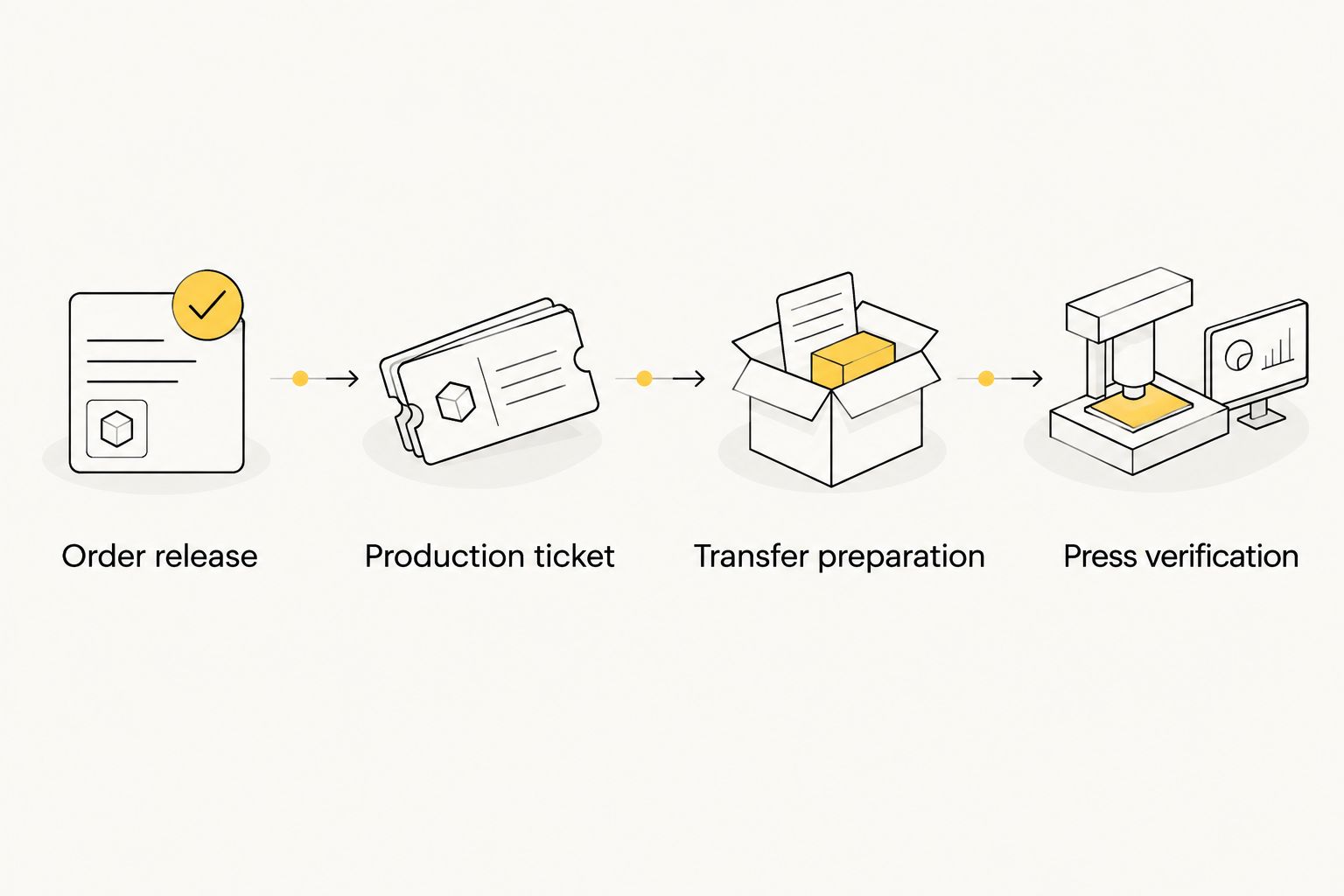
Transfer preparation
Choose the transfer format and verify the order
- Group approved decoration entries by artwork revision, print dimensions, and application requirements. Keep different revisions separate even when the customer-facing design name is identical.
- Choose cut-to-size transfers or a print-ready gang sheet using the comparison below. Match the format to how your operators sort and stage jobs.
- Prepare the artwork according to the selected ordering route’s current requirements. Check transparency, visible detail, dimensions, and the exact spelling of personalized content at final output size.
- Review the transfer order against the production ticket before submitting it. Record the supplier order reference and map every decoration back to its customer order line.
Expected result: The transfer order matches approved production requirements, and receiving staff can sort the delivered transfers without guessing.
| Transfer format | Best for | Advantage | Limitation |
|---|---|---|---|
| Cut-to-size DTF transfers | Jobs you want to stage as individual decorations | Removes your need to separate decorations from a gang sheet | Every size, quantity, and job assignment still needs verification |
| Print-ready DTF gang sheet | Shops that prepare and manage combined artwork layouts | Keeps multiple approved decorations in a planned sheet layout | Requires layout preparation, separation, and accurate job sorting |
DTF2GO supplies custom ready-to-press transfers; your team remains responsible for matching the purchased transfer to the right garment. Outsourcing transfer production removes that manufacturing task, not the approval or inspection work.
Choose cut-to-size transfers for individual-job staging; choose a print-ready gang sheet when your team controls the combined layout. Neither format fixes missing artwork approval or incorrect dimensions.
When combining jobs, maintain a separate sheet map that identifies each decoration. Do not add customer names or job labels to the printable artwork unless you intend those marks to become transfers.
Press verification
Apply, inspect, and close the job
- Receive and count transfers against your ticket. Check artwork revision, decoration size, visible defects, and the quantities assigned to each garment group.
- Stage blanks and transfers together by order line. Keep fronts, backs, and personalized pieces identifiable without relying on memory.
- Test 1 garment per new garment-and-transfer combination as your shop’s minimum release check. Use the transfer supplier’s current instructions for temperature, dwell, pressure, peel, and any finishing press; confirm that the blank can tolerate the process.
- Inspect placement, adhesion, edges, garment condition, and personalization before releasing the remaining batch. Record the approved press setup and repeat inspections during production.
- Reconcile finished quantities with the WooCommerce order. Complete packing and your fulfillment checks before changing Status to Completed and saving the order through Update.
Expected result: Finished garments match the purchased items and approved decorations, and the order record reflects work that actually passed inspection.
The test garment is a recommended production gate, not a durability guarantee. A surface inspection does not replace wash testing when you are qualifying a new blank-and-transfer combination.
For your 2026 press record, save the actual setup alongside the garment specification and transfer reference. Do not copy settings from an unrelated transfer or infer a peel method from the carrier’s appearance.
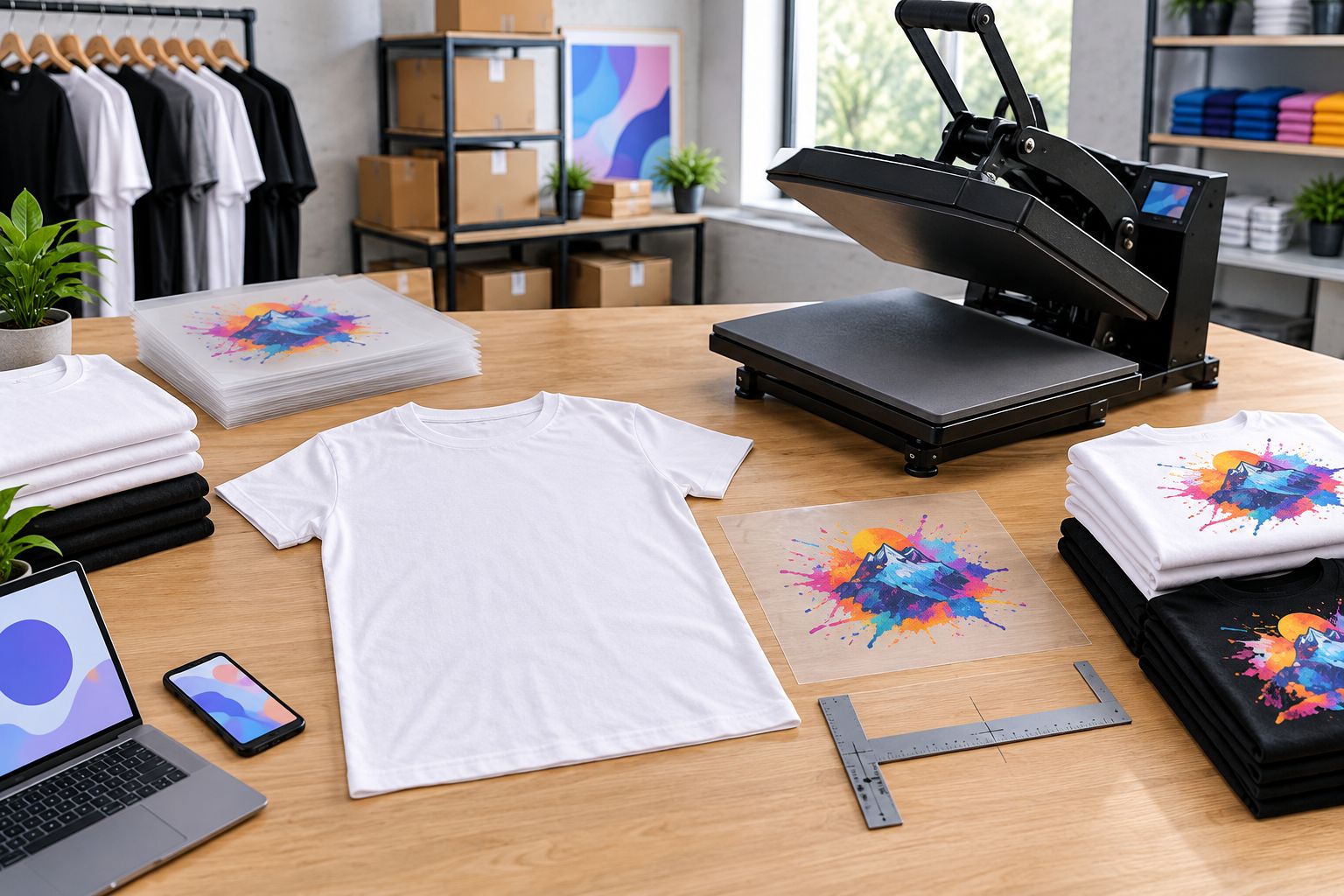
Flag production changes whenever an order is updated
Best for shops with a maintained webhook receiver: use WooCommerce order updates to create review notifications. The benefit is less manual checking; the limitation is that your receiver must filter events, prevent duplicates, and handle failures.
This is a notification workflow. Supplier ordering remains a separate approved action unless you implement and validate a supported connection.
- Open WooCommerce, Settings, Advanced, then Webhooks. Select Add webhook.
- Enter a recognizable Name, set Status to Active, and choose Order updated under Topic.
- Enter your receiver’s HTTPS endpoint in Delivery URL and configure Secret. Select Save webhook. These settings belong to WooCommerce; do not assume a transfer supplier accepts webhook deliveries.
- Configure the receiver to verify the webhook signature, identify the order, and compare production-relevant fields with its stored record. Include payment eligibility, line items, quantities, variations, and any personalization metadata your store actually captures.
- Send changed orders to review. Suppress repeated deliveries that contain no new production-relevant change, and retain a processing record so retries do not create duplicate jobs.
Expected result: A changed order produces a review task, not an automatic second transfer purchase.
Test with a controlled order before activating the receiver for live production. Verify that an ordinary administrative update does not release a fresh job, while a changed garment quantity does create a review task.
After transfer ordering, freeze the released ticket. Put later edits into a revision queue and explicitly decide whether production can continue. Updating a WooCommerce order does not revise an already-submitted supplier order or recover a garment already pressed.
Troubleshooting
The same job appears twice
An order update or retried delivery reaches a receiver that treats every event as new work. Store the order and line-item references, compare relevant content, and check the existing release record before creating another ticket.
A personalized name is missing
The name lives in extension-specific line-item metadata rather than the standard product title. Inspect where your store saves personalization, map that field into the ticket, and block release when required text is blank.
Transfer quantities do not match garment quantities
A garment has multiple decoration locations, but the ticket counts garments only. Record each location separately and reconcile decoration quantities against the garment lines before ordering.
The webhook produces no review task
Check that the webhook is active, the topic matches the event, and the delivery endpoint is reachable. Inspect WooCommerce webhook logs and the receiver’s response; test with a genuine order update rather than assuming a saved configuration proves delivery.
A transfer lifts during peeling
Stop the batch and verify the supplied application instructions, peel method, pressure, and garment suitability. Check for seams or other features interfering with contact, then retest before resuming; do not solve an unknown adhesion problem by repeatedly adding heat.
Customize your workflow
Expand your 2026 setup by standardizing approved garment-and-decoration combinations. Store the artwork reference, placement, and validated application record so repeat jobs start from an approved specification rather than an old email.
Keep repeat-order approval explicit. A familiar logo does not prove that the customer selected the same garment, artwork size, or print location.
Add exception tracking before adding more automation. Record whether a hold came from payment, artwork, missing personalization, transfer preparation, or pressing. That record tells you which handoff needs attention without turning every exception into another notification.
FAQ
How do I turn WooCommerce orders into pressed DTF apparel?
Release eligible paid orders, create a production ticket, approve artwork, order transfers, and inspect the pressed garments. Keep order status separate from your internal artwork and press stages.
Does this workflow automatically order transfers from DTF2GO?
No. This workflow uses a separate approved transfer-ordering step; a WooCommerce webhook sends order data to your configured receiver, not automatically to a transfer supplier.
Which WooCommerce status should I use before pressing apparel?
Processing is the standard starting point for paid physical orders that still need fulfillment. Confirm payment and production details before release, especially when administrators or extensions change statuses.
Are cut-to-size transfers better than gang sheets for WooCommerce jobs?
Cut-to-size transfers suit individual-job staging, while gang sheets suit shops that manage combined layouts. Gang sheets add separation and sorting work; both formats require accurate dimensions and quantities.
Can WooCommerce send personalized names to my production queue?
Yes, when your workflow reads the fields where your store saves personalization. Check extension-specific line-item metadata and require a review when necessary text is missing.
What happens if a customer changes an order after transfers are ordered?
Put the change into a revision queue and pause affected production. A WooCommerce edit does not change a supplier order that you already submitted.
What heat-press settings should I use for DTF apparel?
Use the transfer supplier’s current application instructions and confirm compatibility with the garment. Test the garment-and-transfer combination before releasing the production batch.
One last thing
An unchanged order status does not mean an unchanged production job. Quantities, personalization, and garment selections can change while an order remains Processing. Compare the production specification—not just the status—before releasing or revising work.


